General Information
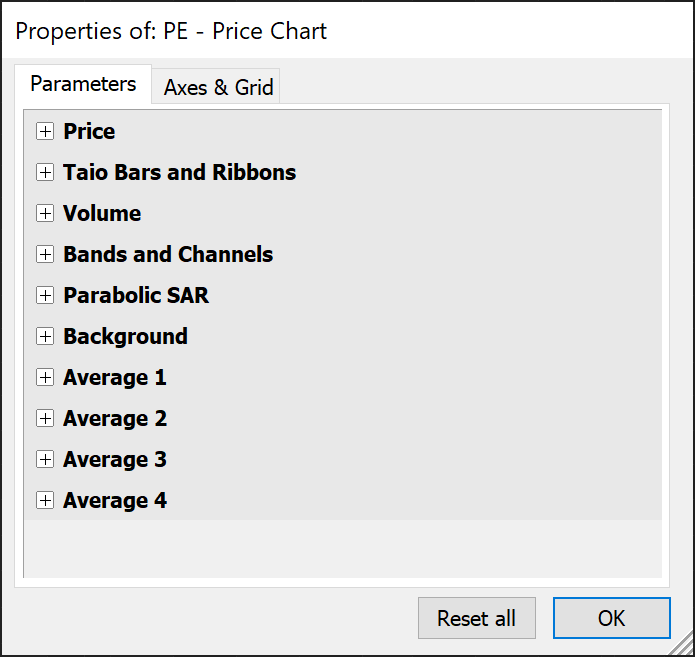
The first image shows all parameters folded. Unfolding is possible through a click on the section header or through the plus icon on the left. There is a setting in AmiBroker preferences (Charting tab) to choose the default folding/unfolding option. We recommend to check “Collapse parameter section” as it is more comfortable when there are many parameters available.
Note that when inserting indicators the very first-time AmiBroker doesn’t display the parameter sections. Just close the parameter window and open it again. After adding an indicator, the parameter window opens with all parameters as usual. Also, AmiBroker doesn’t recognize indicator updates through software installation which results in random parameter alignment. Just click the Reset all button to bring them back as designed.
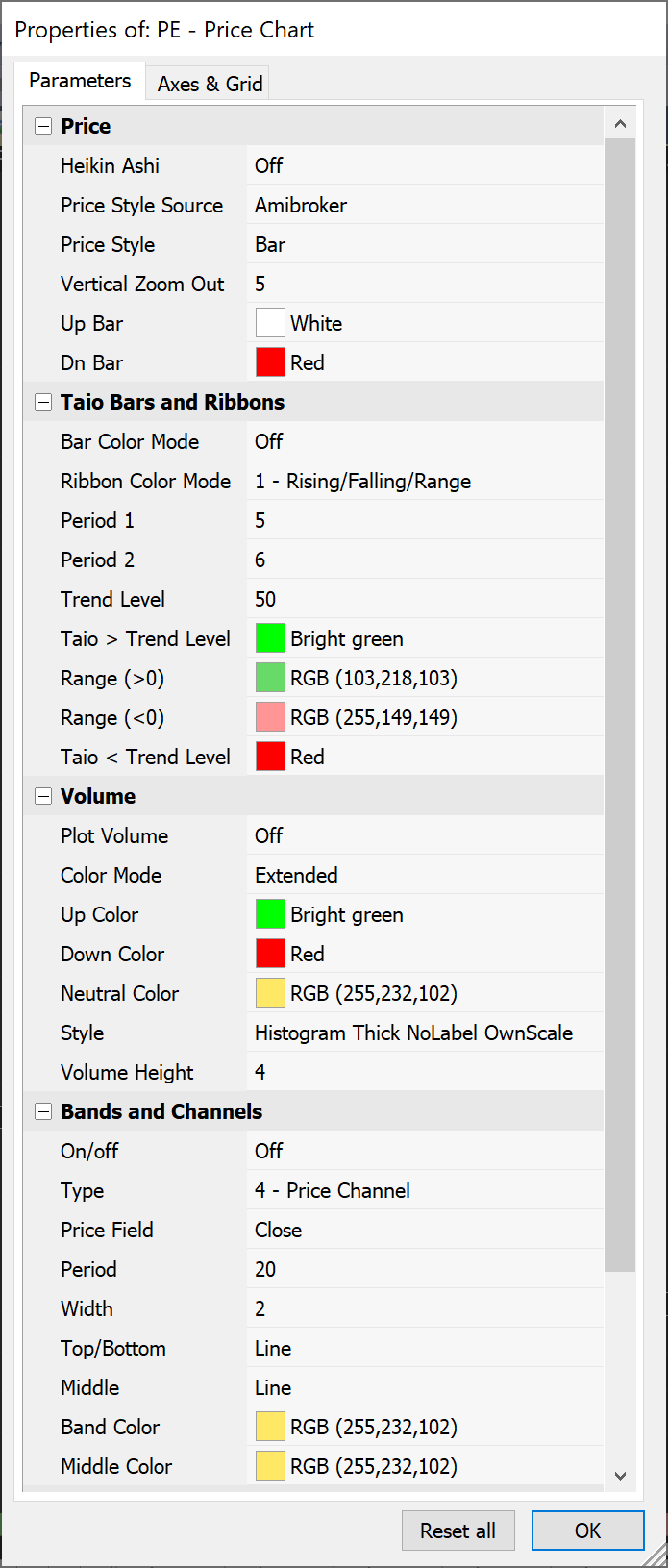
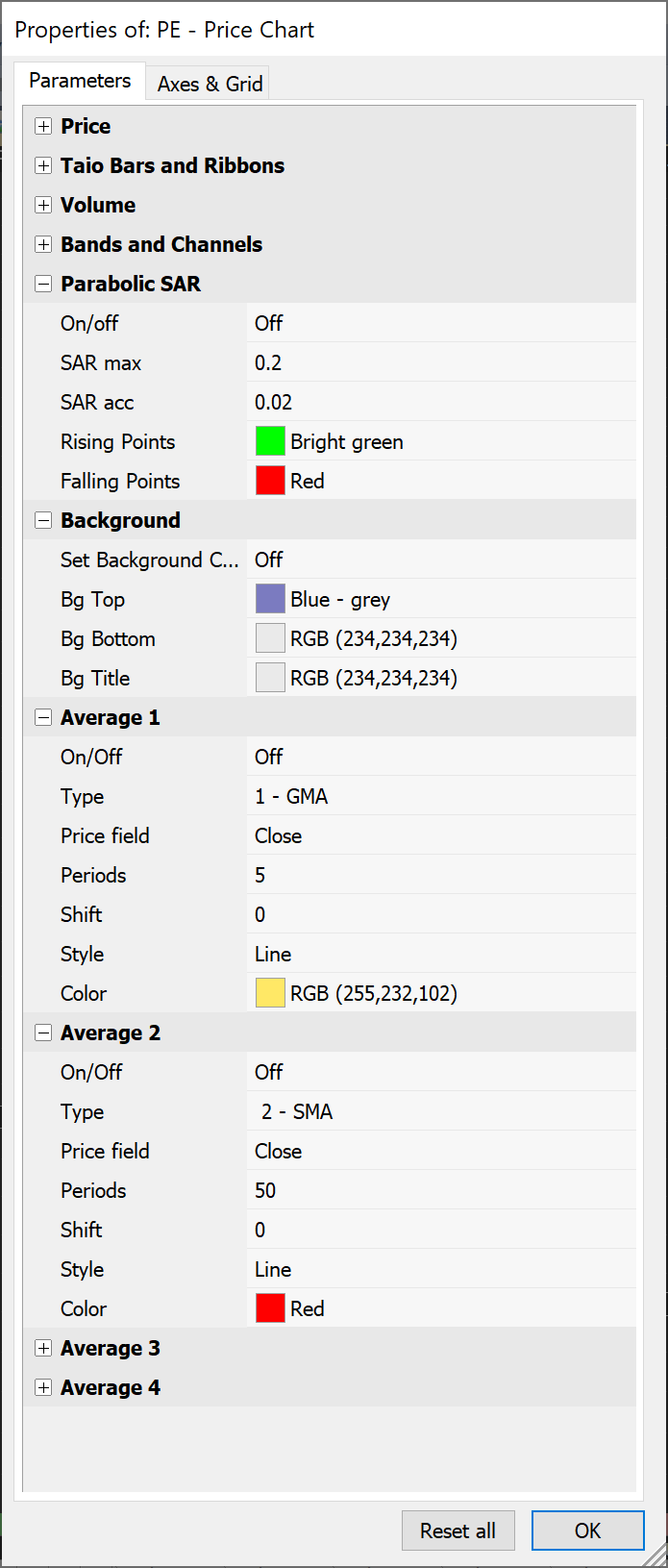
The following images displaying all sections unfolded. Most parts are self-explaining. Therefore we focus on the more critical parameters on the next pages.
Every tool is equipped with a parameter window to customize the chart and automatic analysis functionality. To access the parameter window make a right mouse button click on the chart and select parameters or press the default hotkey CTRL + R.