Alerts
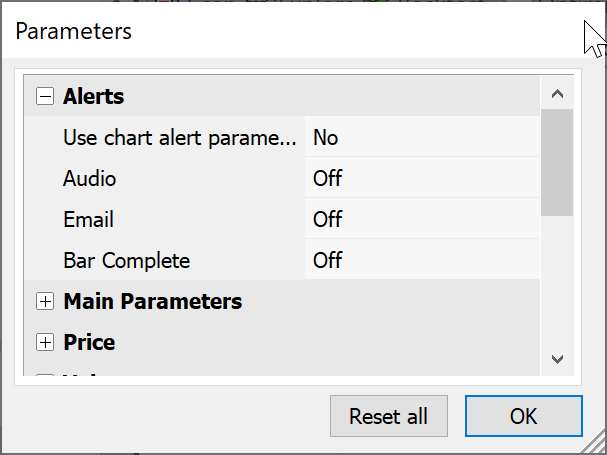
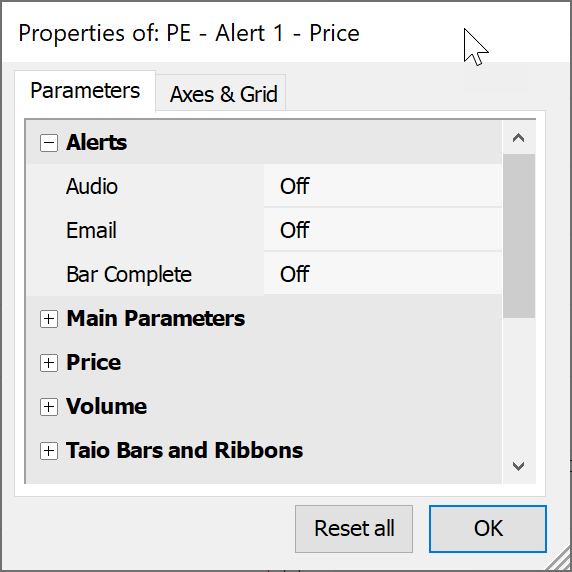
Almost all PatternExplorer tools have alerts implemented, and they consist of three chart parameters as shown below. In the automatic analysis parameters, there is a fourth parameter, called “Use chart alert parameters” which allows syncing the chart settings with automatic analysis. The default parameter value is No but can be changed to Yes in the PE – Configuration.afl file.
With Bar Complete On you get alerts only when the signal bar is complete, and a new bar just began. There are plenty of different audio sounds to choose for alerts. Even different sounds for different signals are possible. Check out the file PE – Customization.afl for the paths and variable names for the various sound files. Also, set the corresponding email settings in AmiBroker preferences to receive email alerts.
The block below shows the selected sounds inside a formula.
AddAlert(Buy_1, Audio, Email, "Close in Support Range", 1, BarComplete, def_BuySound1);
AddAlert(Buy_2, Audio, Email, "Resistance broken", 1, BarComplete, def_BuySound2);
AddAlert(Sell_1, Audio, Email, "Support broken", 2, BarComplete, def_SellSound1);
AddAlert(Sell_2, Audio, Email, "Close in Resistance Range", 2, BarComplete, def_SellSound2);
Amibroker doesn’t scan every indicator from every pane and every symbol automatically! Instead, AmiBroker generates alerts only for visible indicators that are in the foreground. Amibroker also doesn’t scan all symbols from your database automatically.
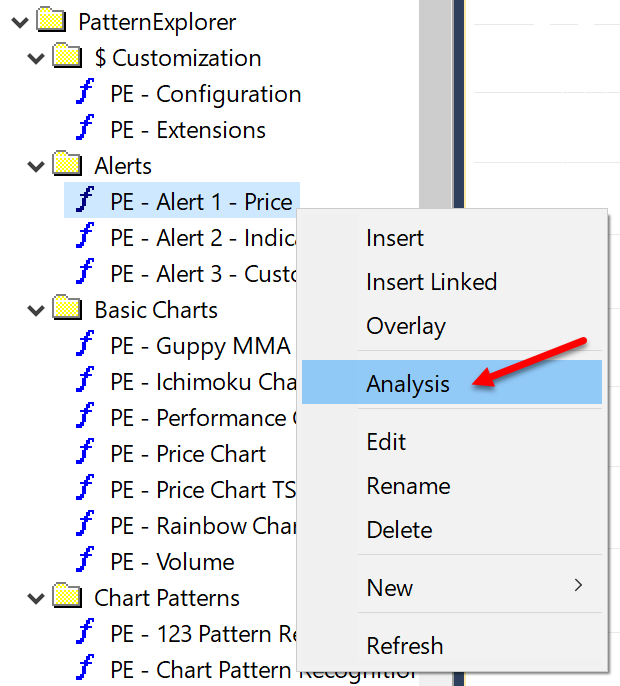
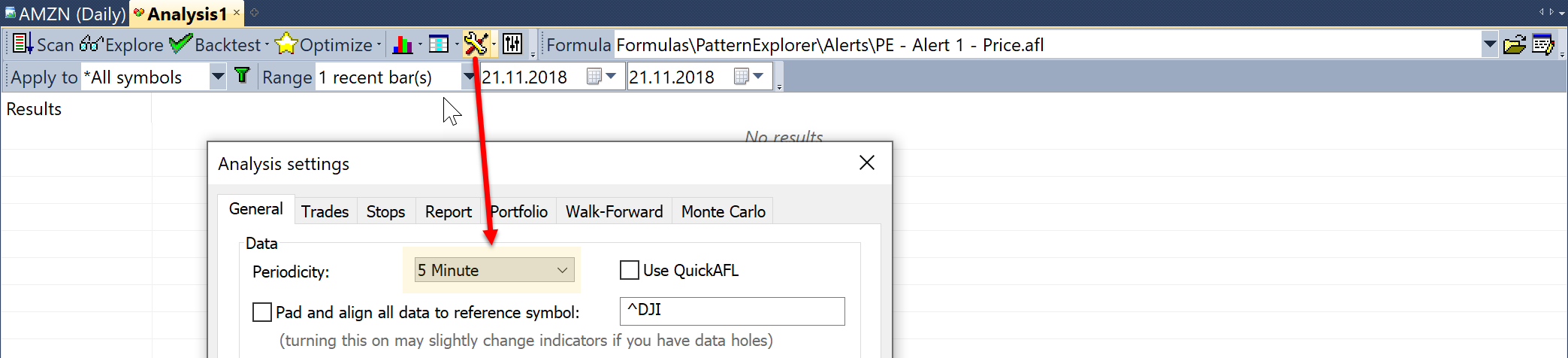
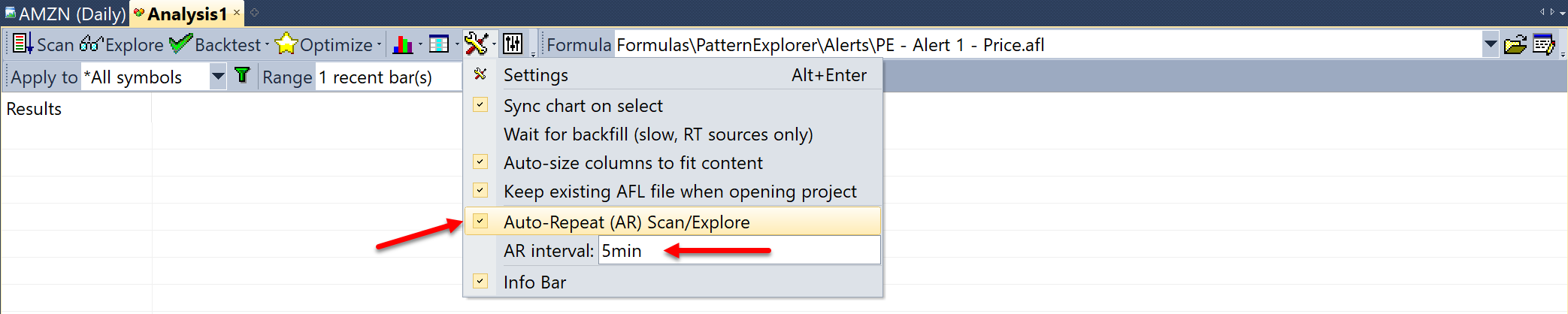
To receive alerts for all markets, you have to open your desired alert tool in the automatic analysis window and scan all markets. You can also do this automatically in your preferred interval. The images below illustrate the settings, but more detailed instructions are available in the AmiBroker help, which is highly recommended to read.